
Liveora Snap
Screenshot & markup tool
One picture. No follow-up questions.
Grab a region, a window or the whole screen, mark it up from the keyboard, and paste it where the conversation is: the ticket, the chat thread, the README.

Free preview 0.1.0 · tested on Windows 11 · macOS build untested · other systems
Capture
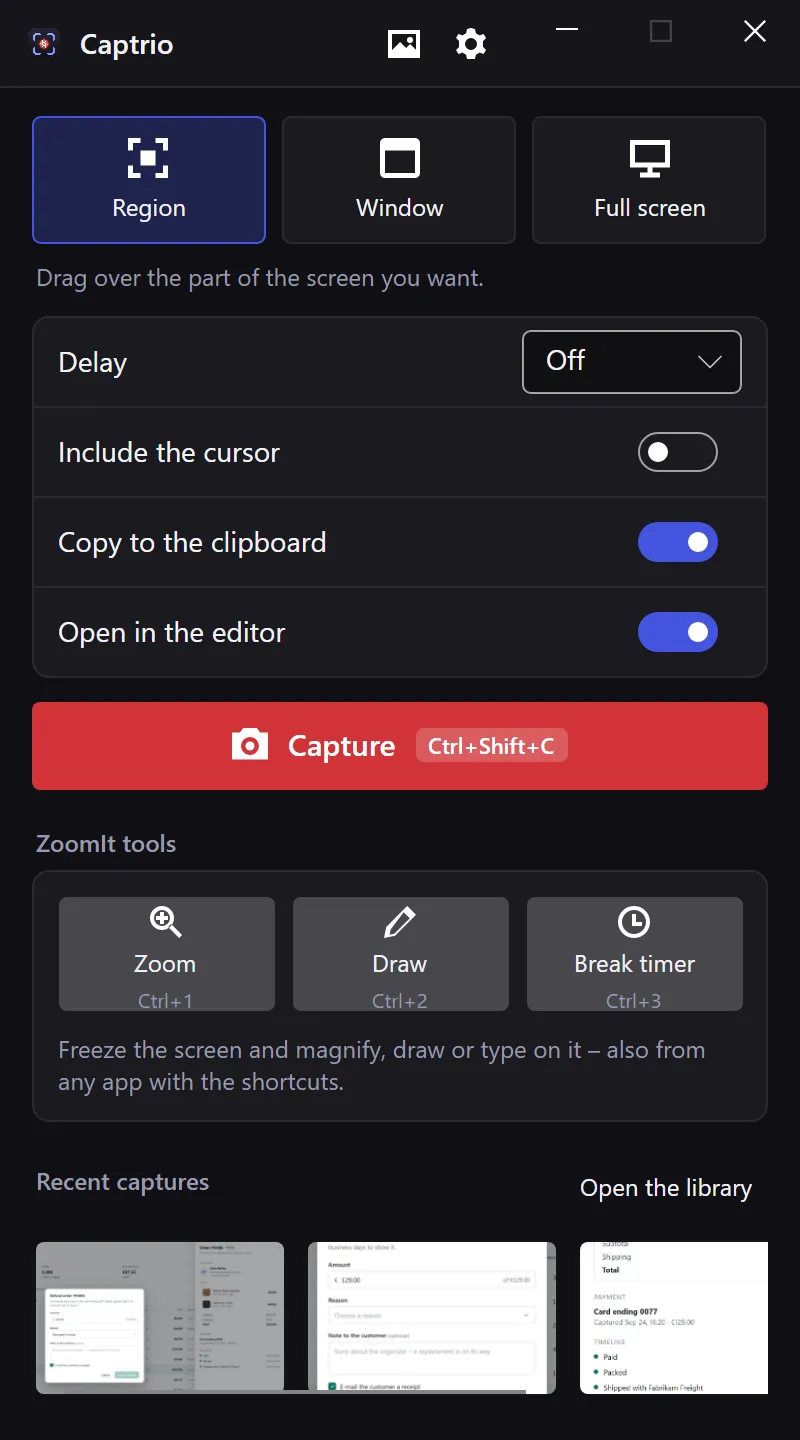
Three ways to grab, one key each.
- Region
- Drag over a frozen copy of the screen. Arrow keys nudge the edges, Space takes the whole display, Enter confirms.
- Window
- Point at a window; the highlighted one is captured when you click.
- Full screen
- The display under the pointer, on any number of monitors.
- Options
- A 3, 5 or 10 second delay, the cursor in or out, straight to the clipboard, straight into the editor.
PrintScreen layout
- PrtSc region
- ShiftPrtSc window
- CtrlPrtSc screen
The default on Windows.
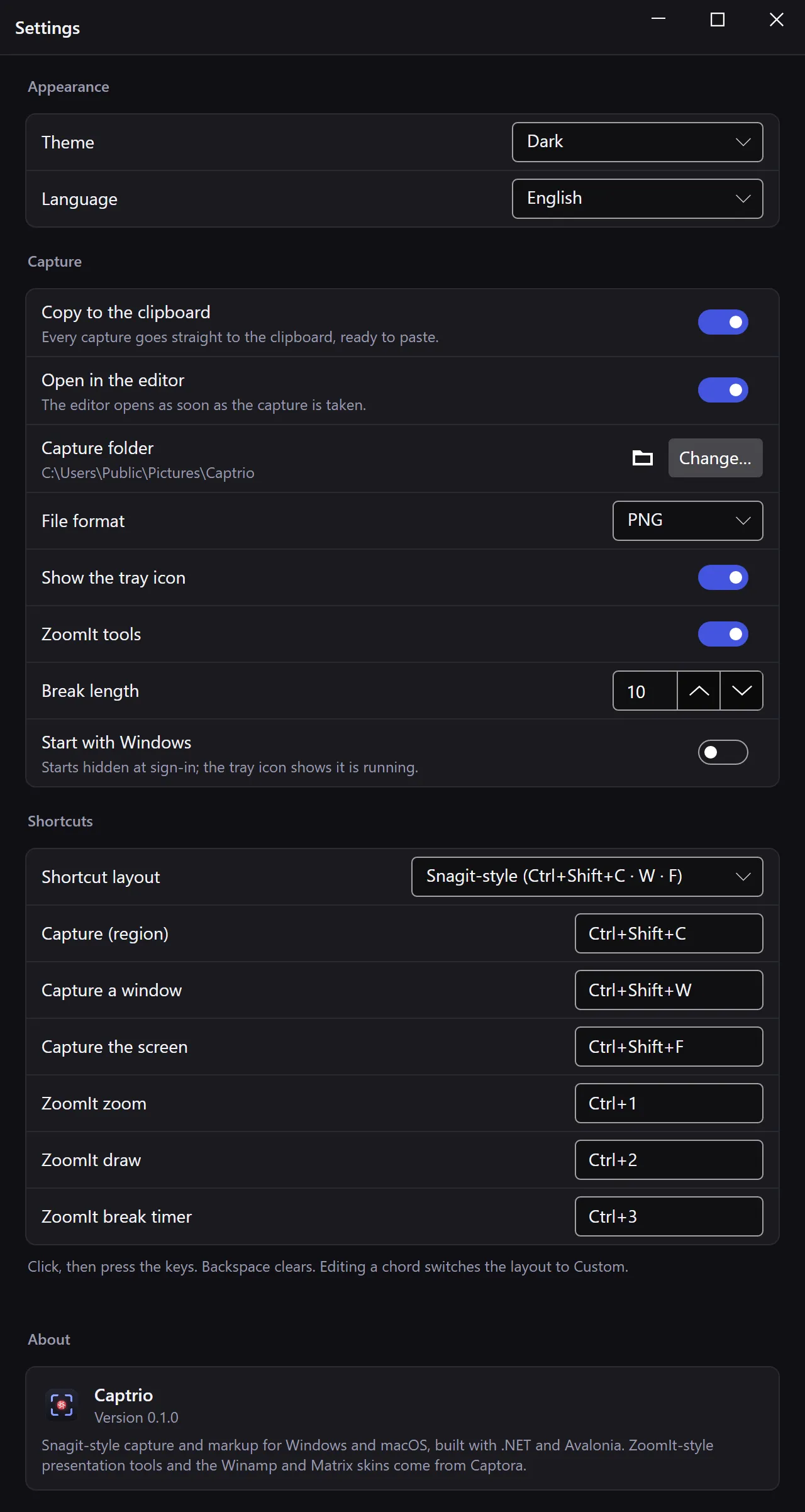
Snagit-style layout
- CtrlShiftC region
- CtrlShiftW window
- CtrlShiftF screen
The default on a Mac, with ⌘. Any key can be your own.
Region picker
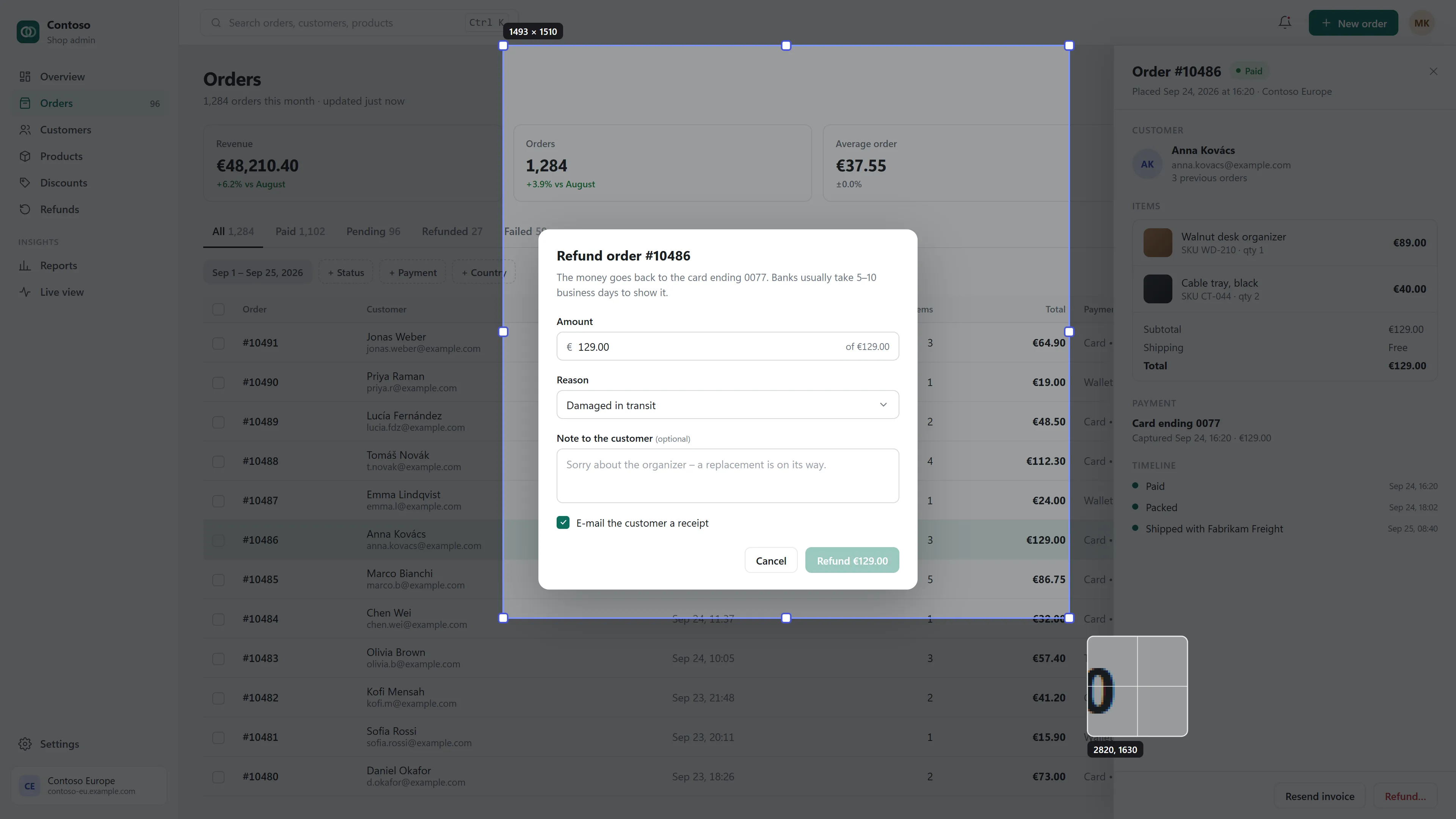
A loupe where the pointer is.
The picker freezes the screen first, so menus and tooltips hold still while you frame them. The size readout and the magnified pixels under the pointer make the edge land where you meant it.
Editor
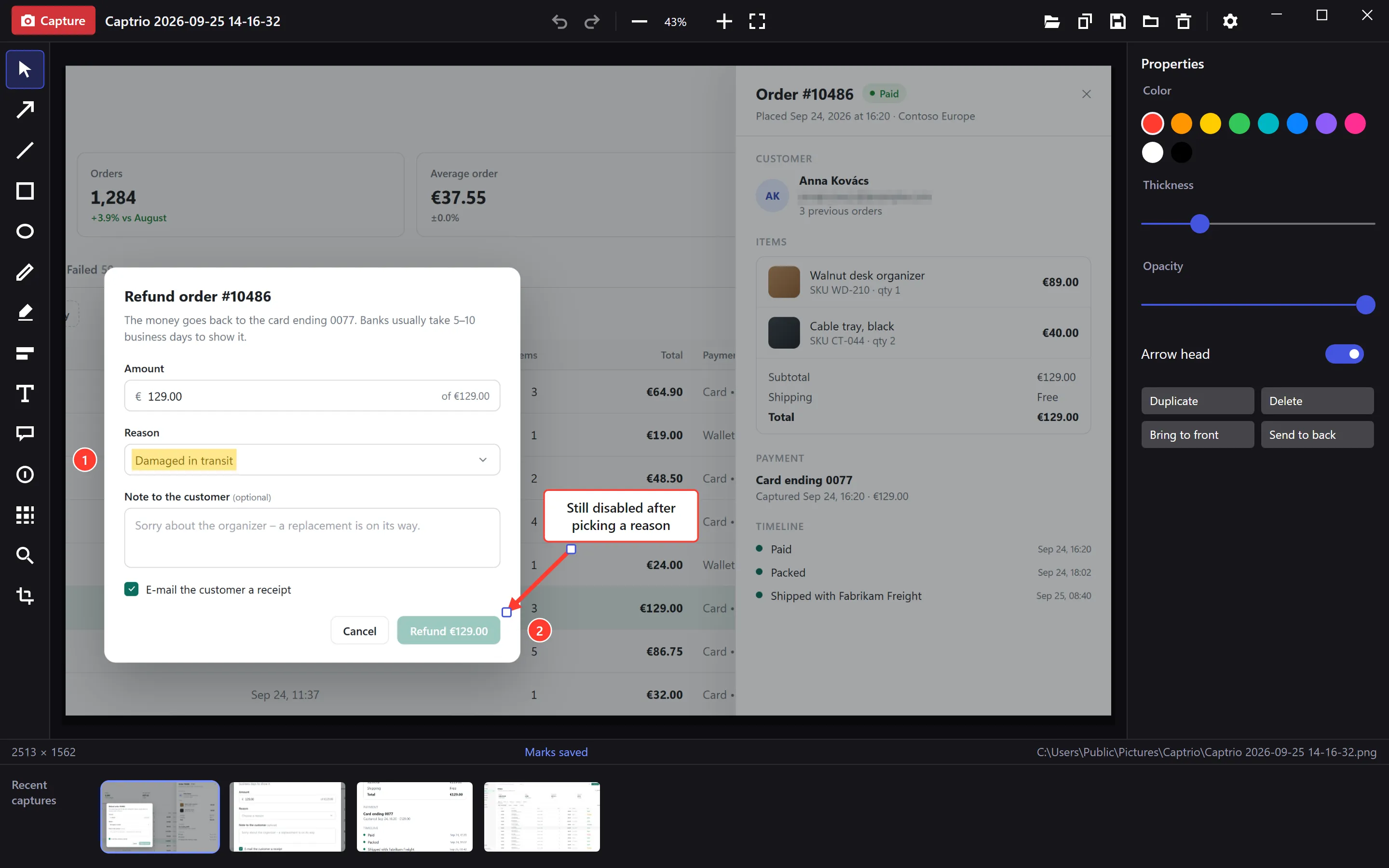
An editor built for pointing.
Every tool has one letter. Zoom with Ctrl and the wheel, pan with the middle button or Alt and a drag, undo with CtrlZ , redo with CtrlY .
- A Arrow From the note to the thing it is about.
- L Line Underline, connect or separate.
- R Rectangle Frame a field, a button or a row.
- E Ellipse Circle one detail.
- P Pen Freehand, for when nothing else fits.
- H Highlighter A marker stroke; Shift+H lays a highlight block instead.
- T Text Plain or on a solid background.
- C Callout A speech bubble with a tail.
- N Step number 1, 2, 3 for the order of the clicks.
- B Blur Blur or pixelate anything private.
- M Magnifier Enlarge a detail where it sits.
- X Crop Trim the picture; undo brings it back.
Save
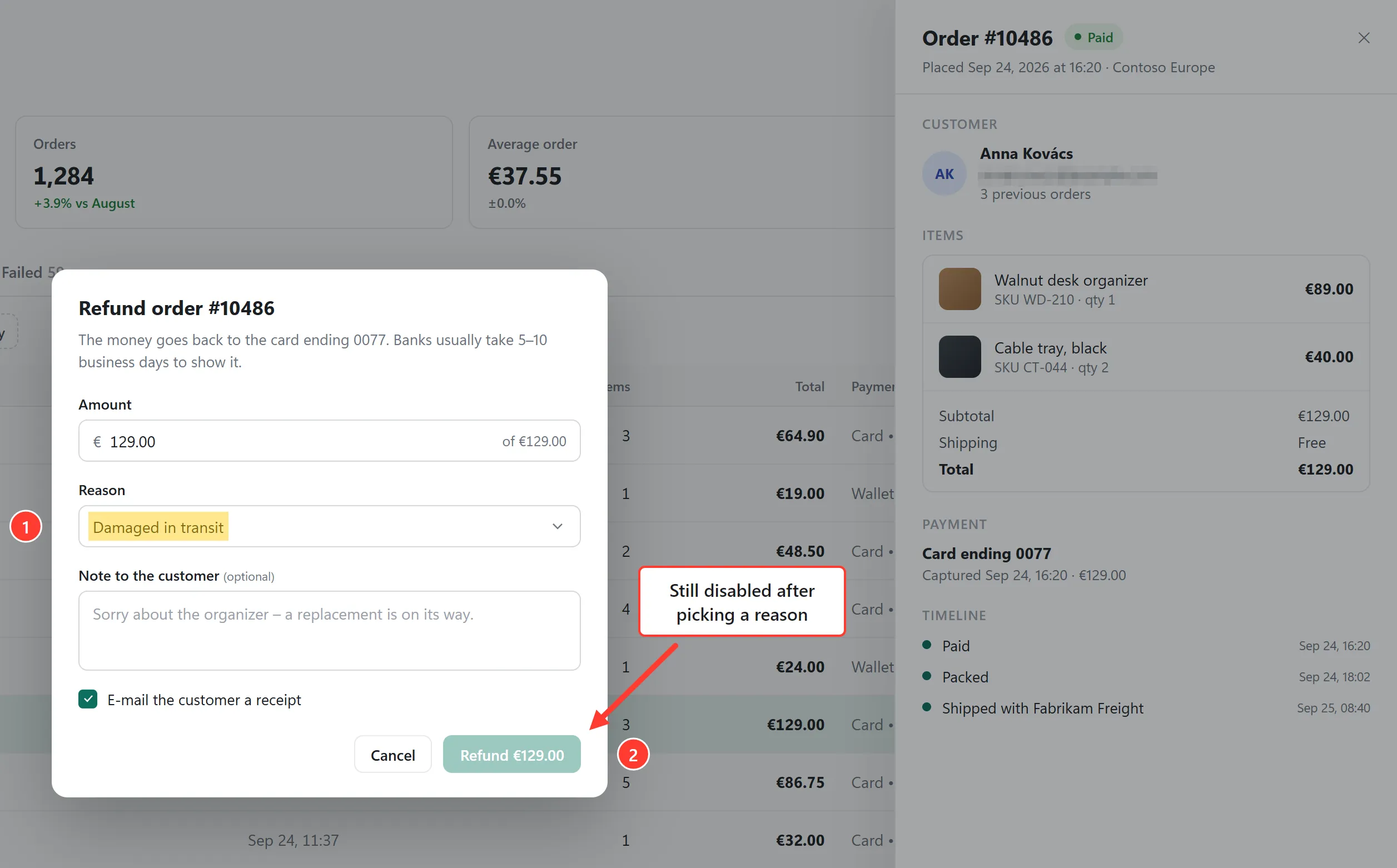
What you save is what you saw.
The editor and the saved picture come from the same renderer. Save image writes a flattened PNG or JPEG; Copy image puts it on the clipboard.
The capture itself stays untouched in Pictures\Captrio, and the marks live beside it in a
.captrio.json file, so next week you can still move the arrow.
Live tools
Draw on the live screen.
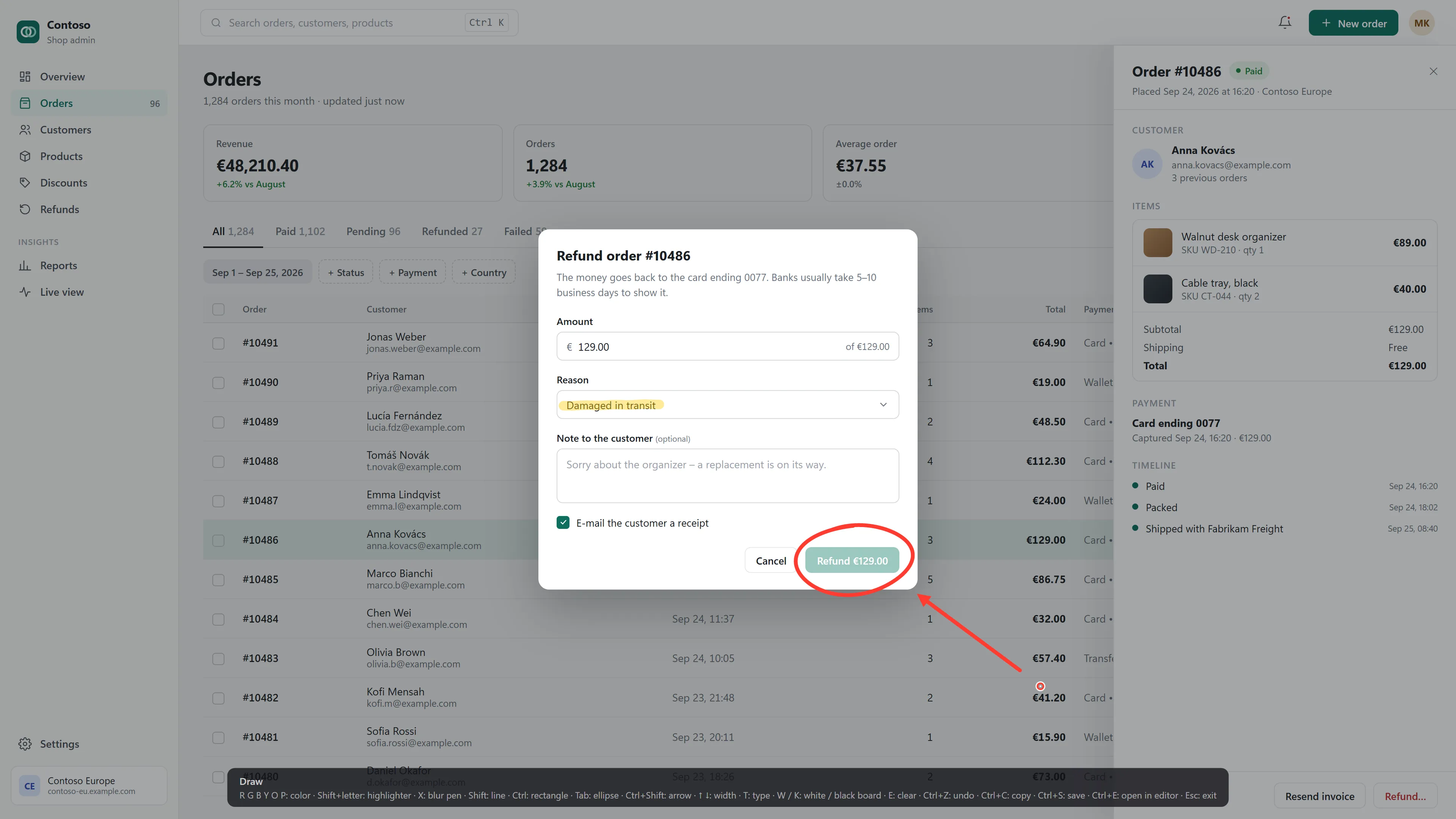
ZoomIt's keys, from any app. Freeze and magnify, draw over what's running, type a note, or put up a break timer. CtrlE opens the marked-up screen in the editor with every mark still editable.
- Ctrl1 Zoom
- Ctrl2 Draw
- T Type
- Ctrl3 Break timer
- CtrlE Open in the editor
Settings
It lives in the tray.
Close the panel and Snap keeps running in the tray with its shortcuts live. It can start with Windows or macOS, hidden. The skin, the language (English or Hungarian, following the system), the capture folder, the file format and every shortcut sit on one page.
- Captures
-
Pictures\Captrio, one PNG per capture plus the marks in.captrio.json - Settings
-
%APPDATA%\Captrio, or~/Library/Application Support/Captrioon a Mac - Built with
- .NET 10 and Avalonia: the same app on Windows and macOS, with a thin native layer for capture.
Good to know before you start.
This is a first public preview. Here is what it doesn't do yet, and where it will ask you something.
- PrintScreen
- Windows 11 hands the PrintScreen key to the Snipping Tool. With the PrintScreen layout, Snap switches that off so it can take the key; you can switch it back in Settings › Accessibility › Keyboard.
- Not yet
- No scrolling capture and no live zoom (ZoomIt's Ctrl+4) in this first release.
- Windows
- Some hardware-accelerated windows come out black from the window API; Snap then cuts the window out of the screen instead.
- macOS
- Allow Snap under Privacy & Security › Screen Recording at the first capture. The Mac build hasn't been run on real hardware yet.
- Name
- The 0.1.0 preview was built before the rename, so it still runs as Captrio and keeps that name for its folders.
- Signing
- The preview isn't code-signed yet: on Windows the browser and SmartScreen each ask once, and macOS needs Open Anyway. What to click
Your next ticket will be shorter.
Liveora Snap 0.1.0 is a free preview. Paid licences will be sold on this site later.