Liveora Studio
Screen recorder & video editor
Record it once. Explain it forever.
Record a screen, a window, a region or a browser tab. Cut it, mark it up on a timeline and export MP4, WebM or GIF that looks exactly like the preview.
Free preview 0.1.0 · tested on Windows 11 · macOS build untested · other systems
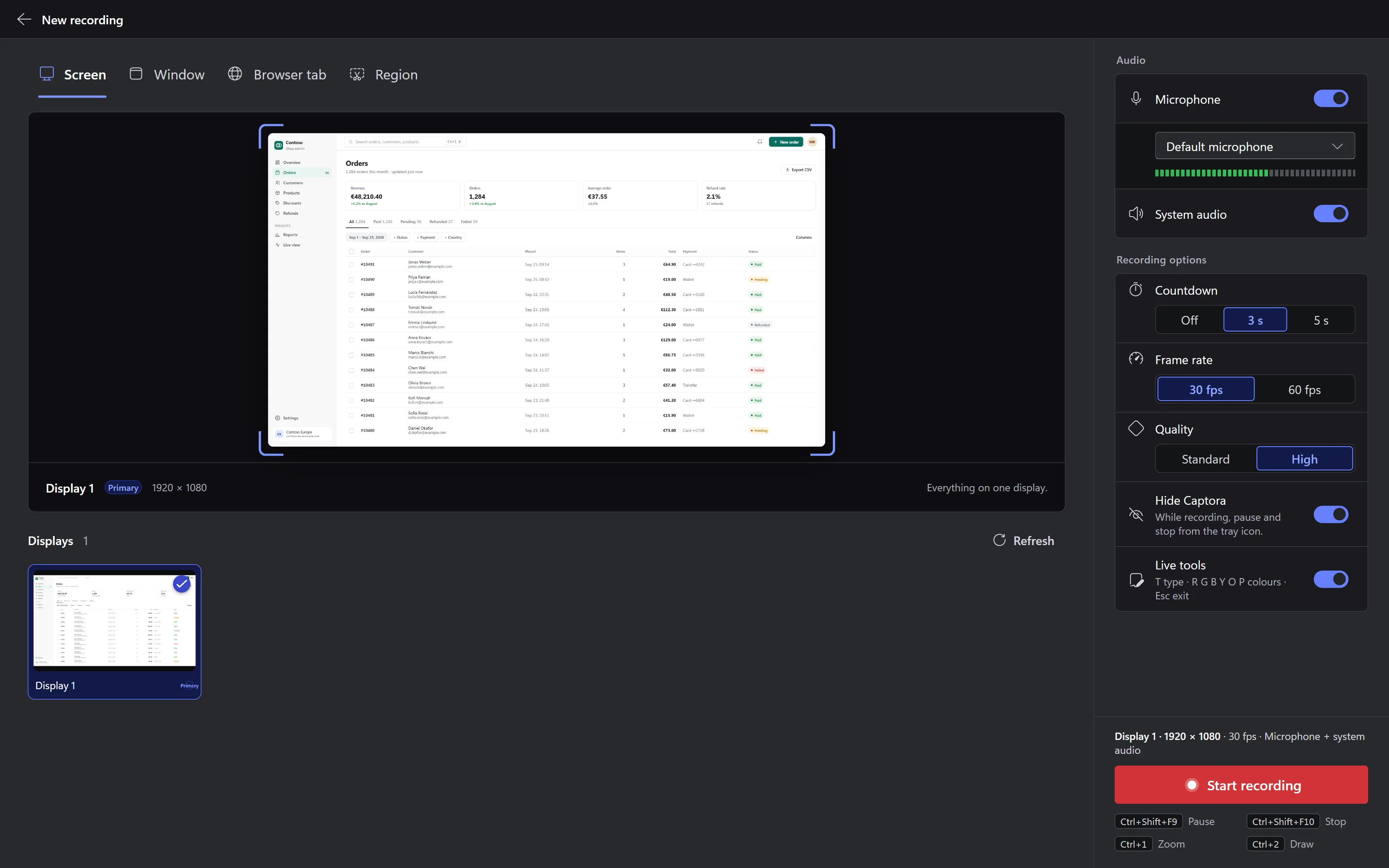
Record
Pick what to record.
Four sources, chosen from live previews, and a countdown so you can get your hands back on the mouse.
- Screen
- Any display, chosen from live thumbnails.
- Window
- One app window from a searchable list with app icons.
- Browser tab
- Edge, Chrome, Brave or Vivaldi records the tab itself and keeps its sound. Studio opens a local page in the browser where you pick the tab.
- Region
- A rectangle dragged out on any display.
- Sound
- Microphone with a live level meter; system audio on Windows.
- Start
- A 3 or 5 second countdown, at 30 or 60 frames per second.
While you record
A bar that stays out of the take.
A small bar floats above everything: pause, stop, restart, discard and the microphone level, plus the live tools when they're on. It never shows up in the recording. Studio itself steps out of the taskbar and waits in the notification area, or the menu bar on a Mac, with the timer in its tooltip.
Takes stream to disk as you record. If Studio ever crashes mid-take, the next start restores everything recorded so far as a project.

- Pause
- CtrlShiftF9 ⌘+Shift+F9 on a Mac
- Stop
- CtrlShiftF10 ⌘+Shift+F10 on a Mac
- Live pen
- Ctrl1 zoom Ctrl2 draw T type Screen and region recordings; every mark goes into the video. ⌘+1 and ⌘+2 on a Mac.
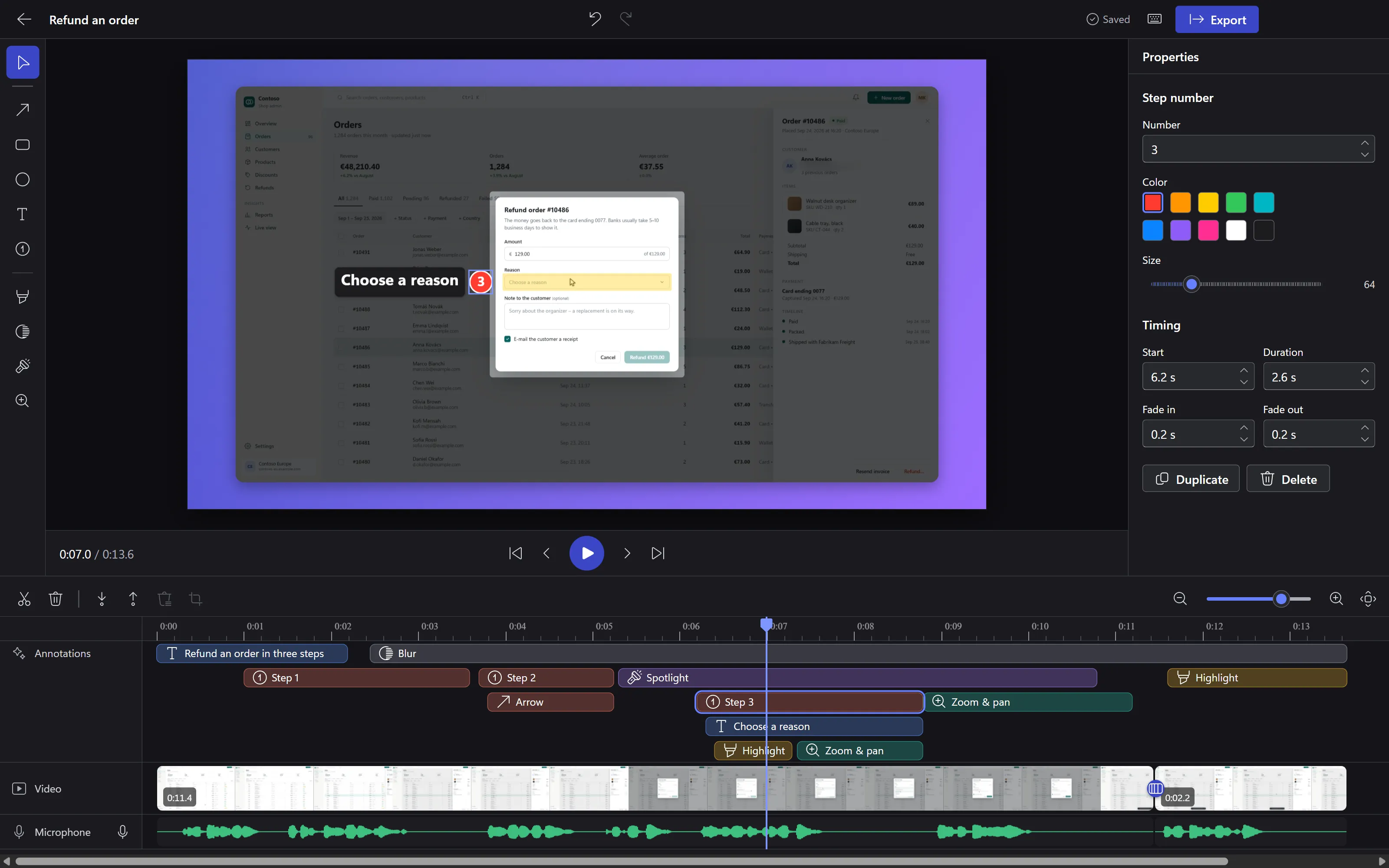
Edit
Cut, mark and time it on one timeline.
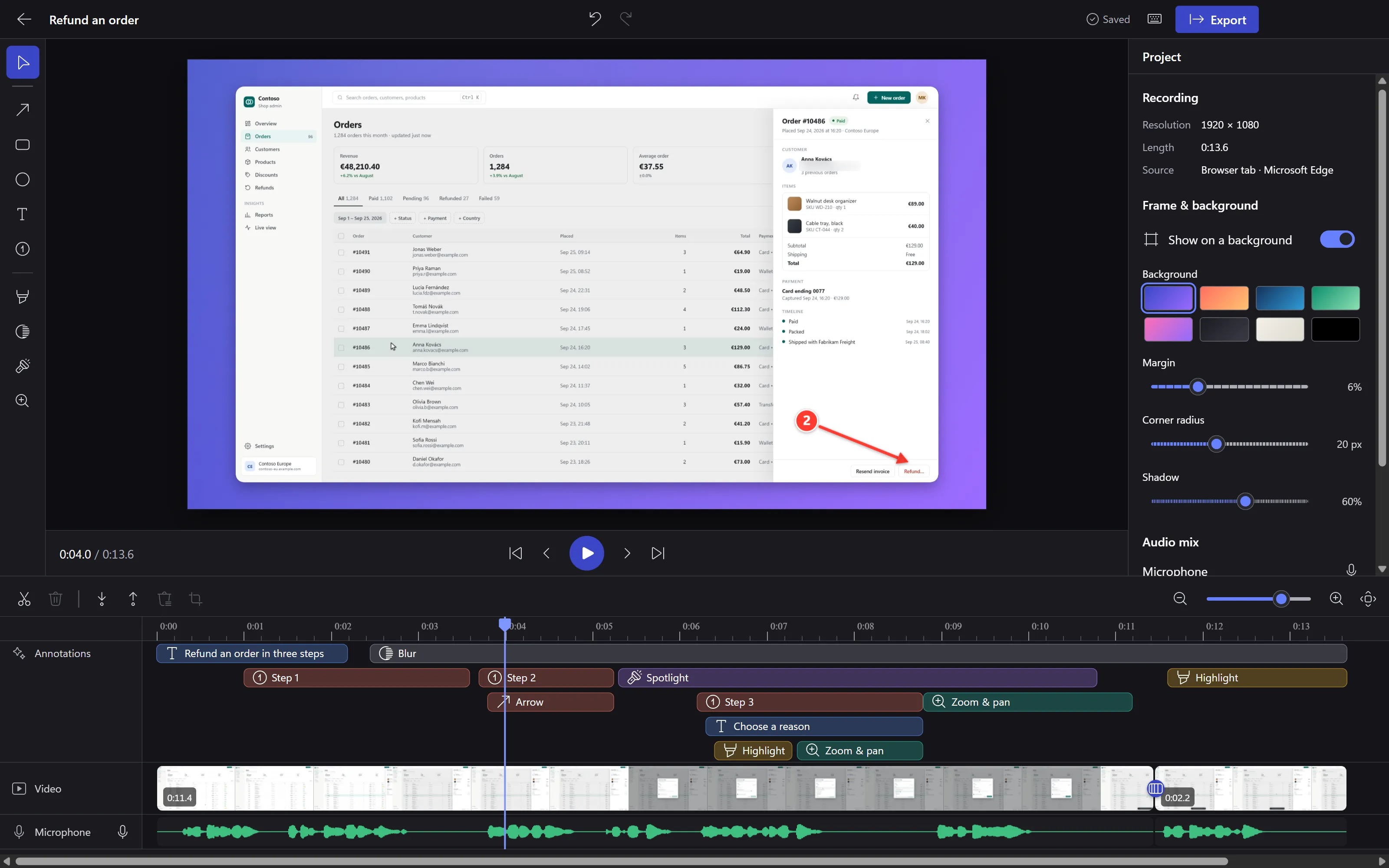
Every mark is a clip with its own timing and fades, so the arrow shows up when you say "here", not before.
- Cut
- S splits at the playhead. Delete a clip and the gap closes; drag clip ends to trim.
- Range
- I O mark in and out, X cuts the range, ShiftX keeps only it.
- Marks
- Arrow, rectangle, ellipse, text, highlight, blur or pixelate, step number, spotlight, zoom and pan.
- Audio
- System sound and microphone on separate tracks, with waveforms, volume and mute.
- Undo
- Undo and redo for everything, autosave, and ? lists every shortcut.
Look
Frame it, grade it, join the cuts.
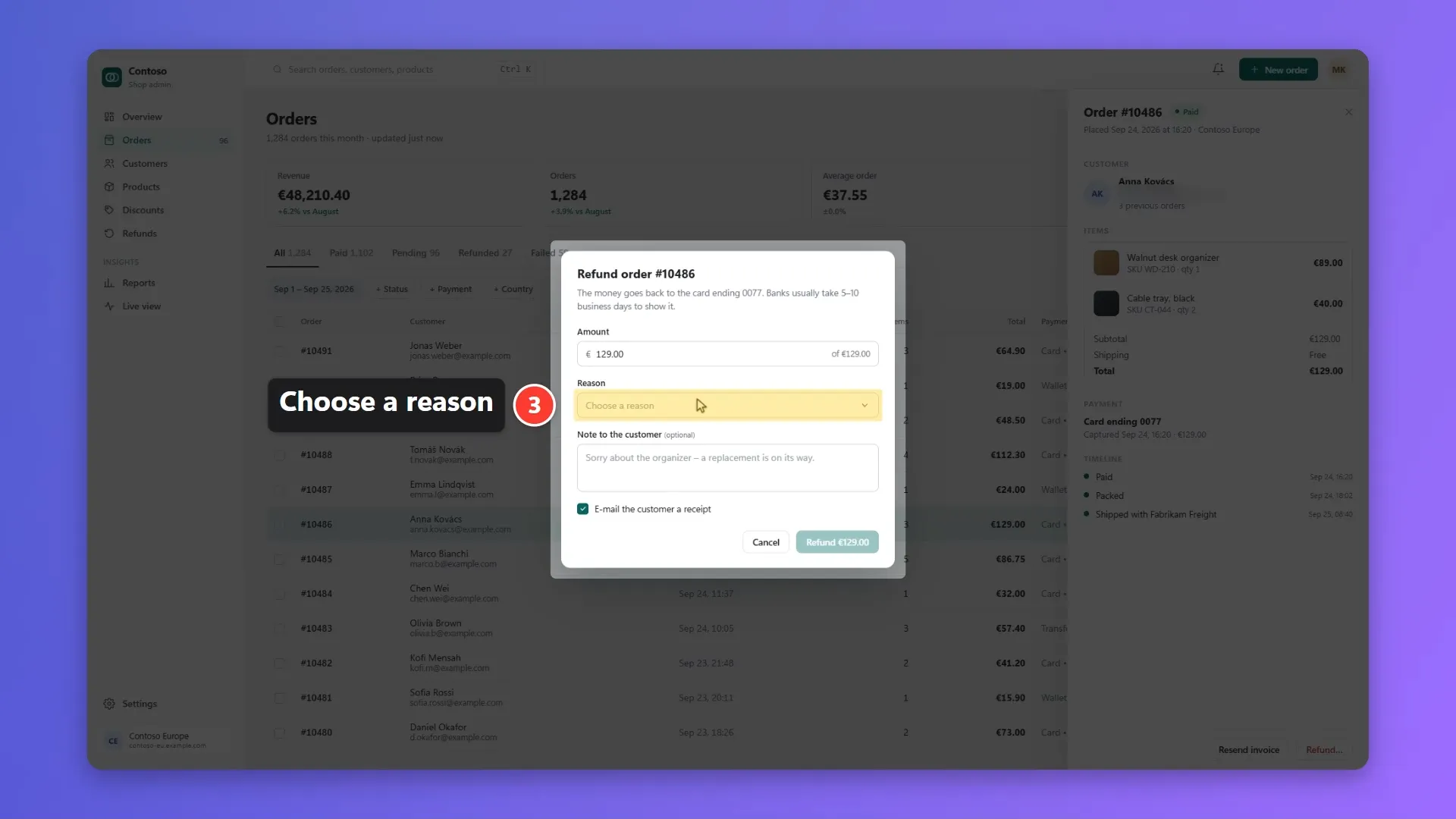
Frame and background turns a raw screen into a product-demo shot: the footage sits on a backdrop with a margin, rounded corners and a soft shadow, and the marks follow the footage.
8 backdrops
- Iris
- Sunset
- Ocean
- Mint
- Candy
- Graphite
- Paper
- Black
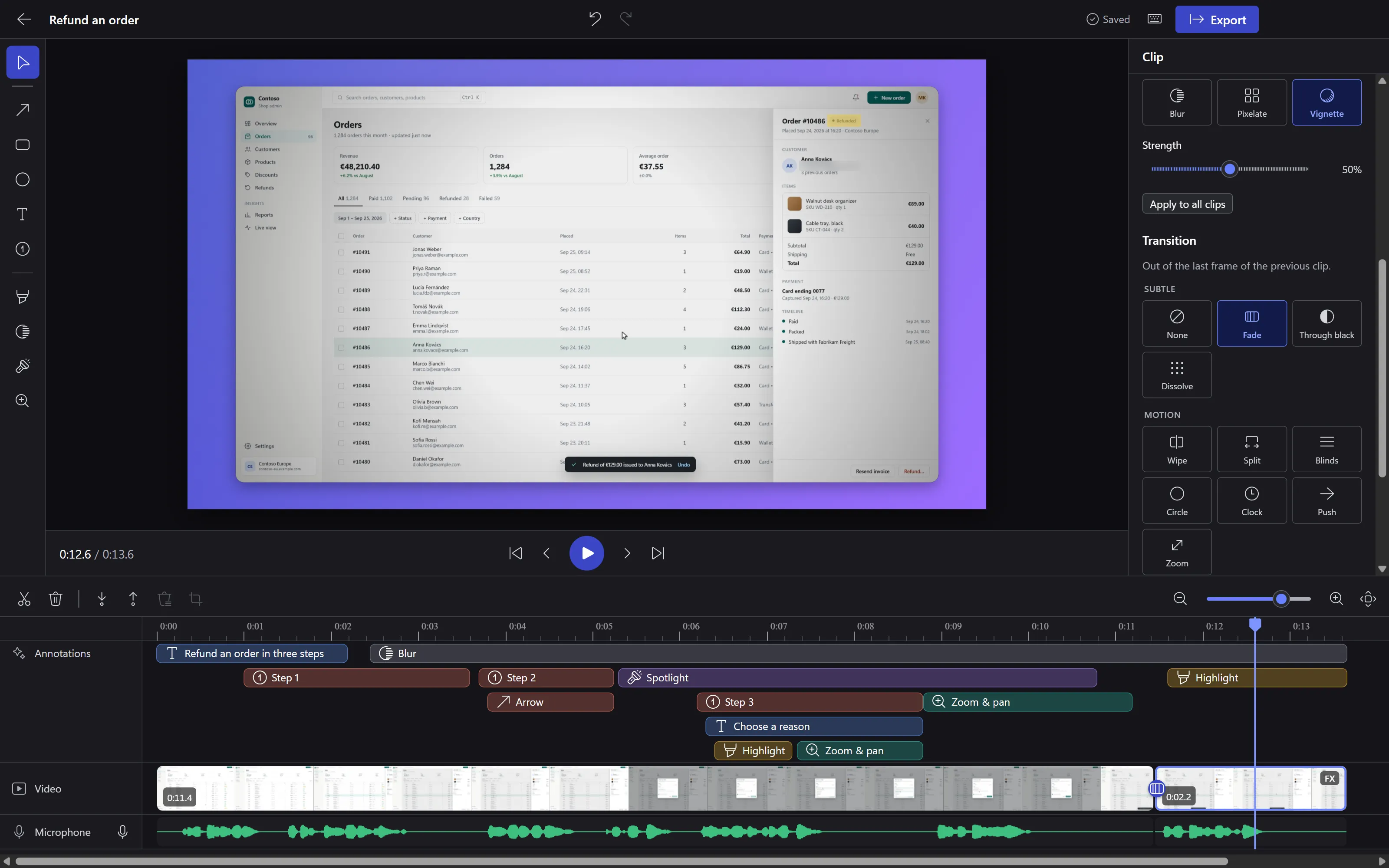
14 effects, one strength slider
- Colour correction
- Black & white
- Sepia
- Noir
- Negative
- Old film
- Cinematic
- VHS
- Glitch
- Glow
- Matrix
- Blur
- Pixelate
- Vignette
One button applies the effect to every clip.
13 transitions, 0.2 to 2 seconds
- Fade
- Through black
- Dissolve
- Wipe
- Split
- Blinds
- Circle
- Clock
- Push
- Zoom
- Cube
- Flip
- Doors
Export
Export what you previewed.
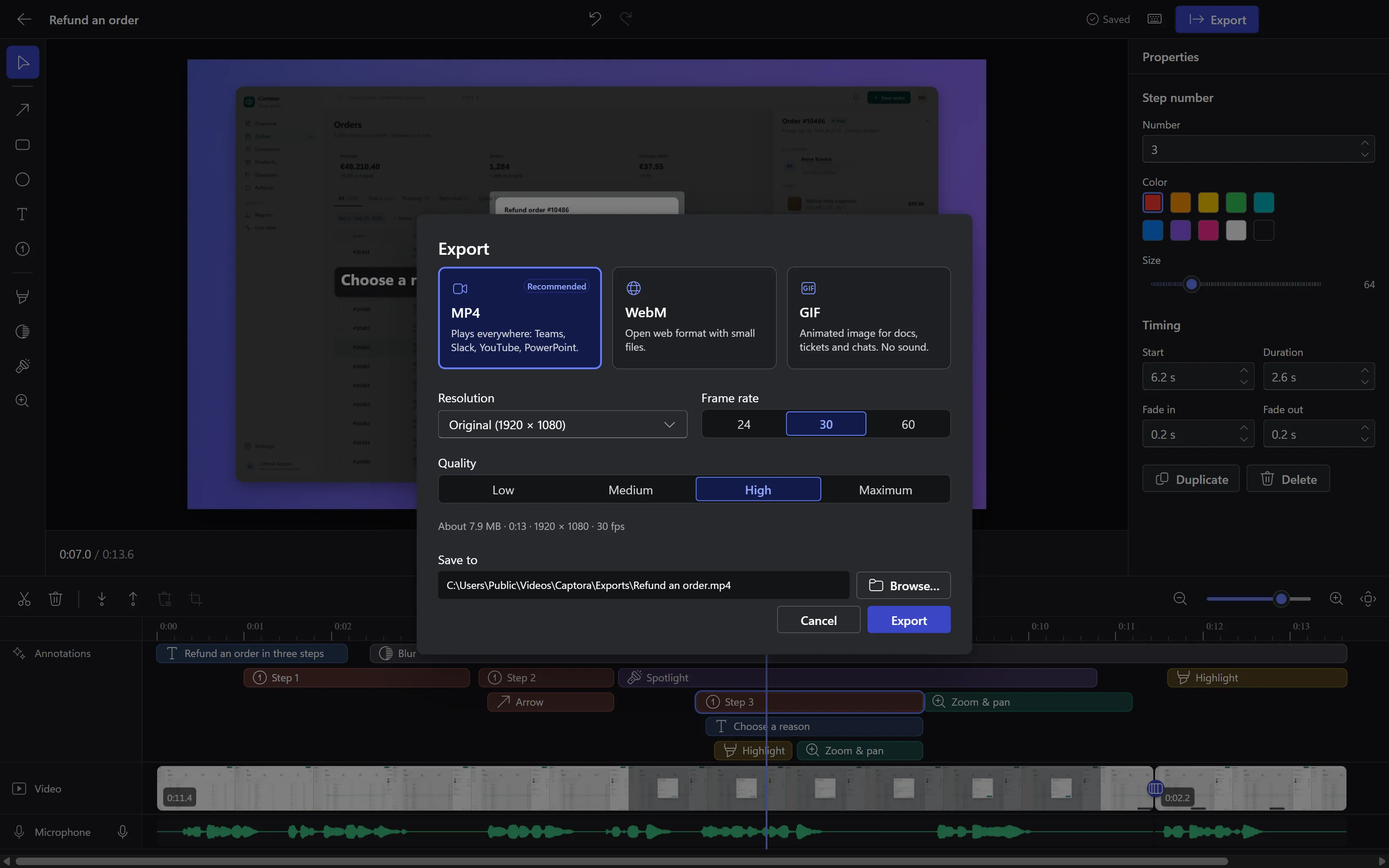
One renderer draws both the preview and the export, so the file matches the editor frame for frame. Pick a format, a resolution, a frame rate and a quality; Studio estimates the size before it starts.
- MP4
- H.264 and AAC. Plays everywhere.
- WebM
- VP9 and Opus. The open web format.
- GIF
- For docs and chat; repeated frames are merged to keep it small.
- Share
- One click uploads the export to your own OneDrive or Google Drive and copies the link. There is no Liveora server in between, so you register your own app with Microsoft or Google once; the steps are in Settings.
Your recordings, where you left them.
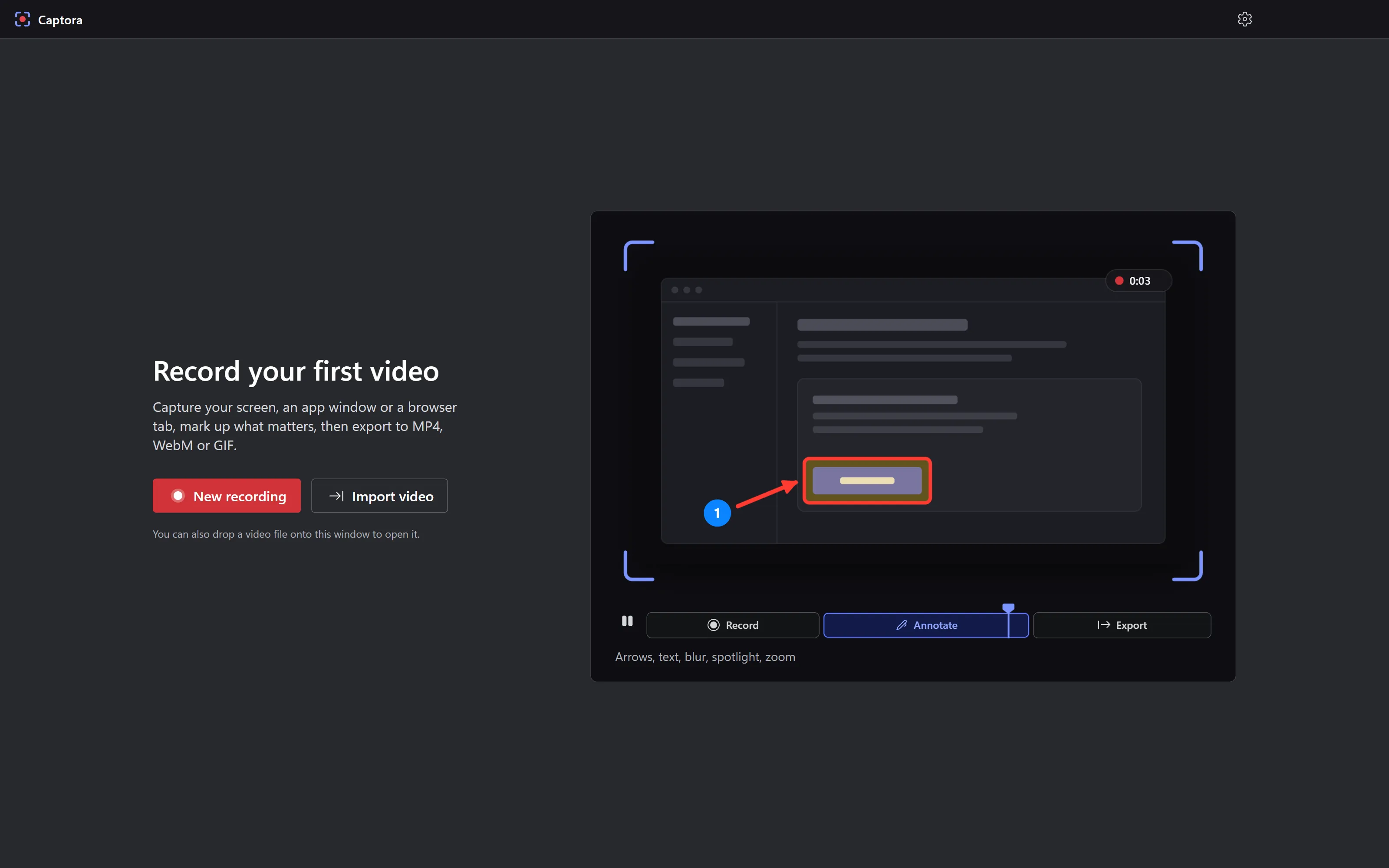
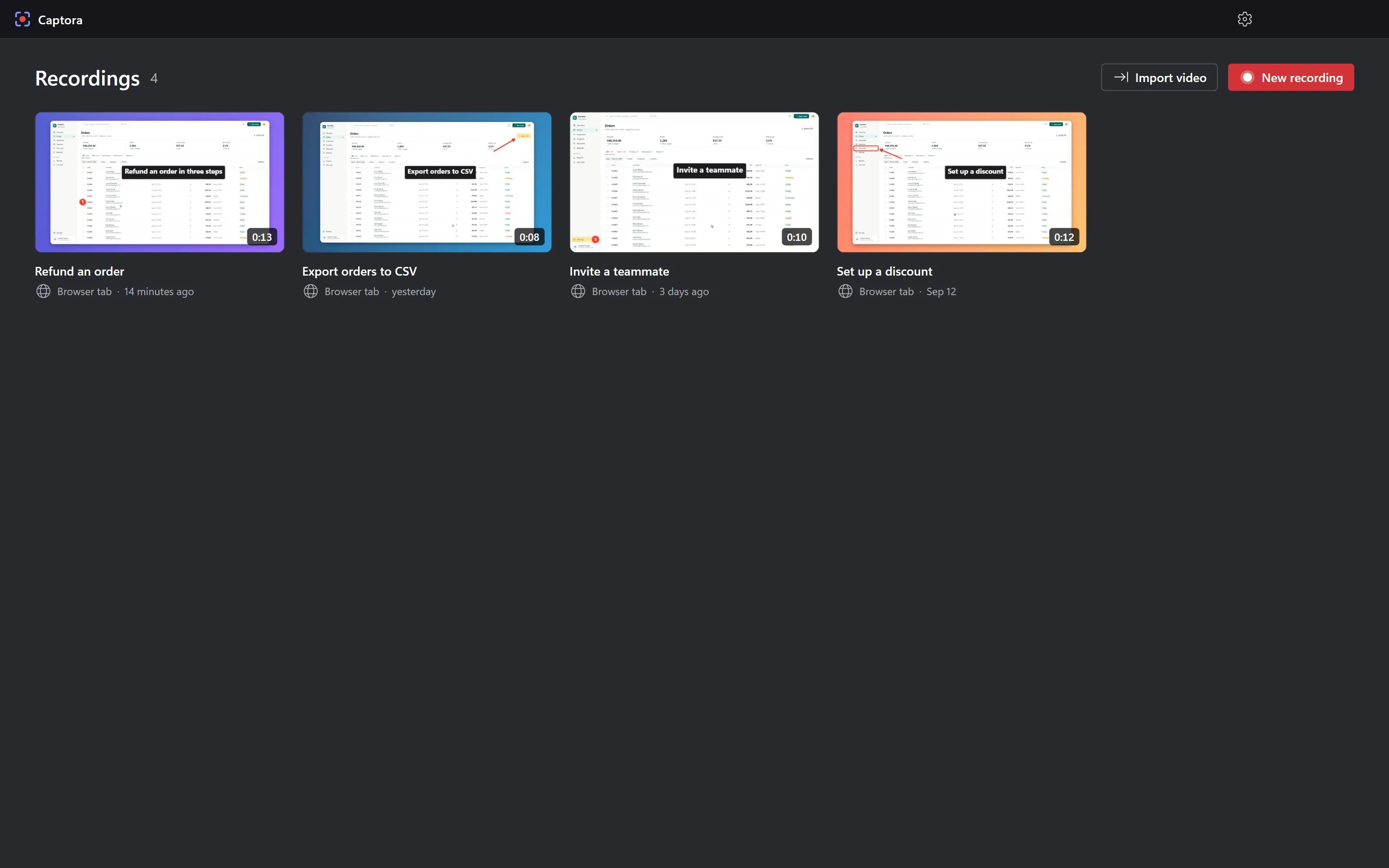
Projects live in Videos\Captora (Movies/Captora on a Mac), exports in Videos\Captora\Exports. The first start opens with a short demo of record, annotate, export.
Good to know before you start.
This is a first public preview. Here is what it doesn't do yet, and where it will ask you something.
- macOS audio
- Studio can't record a Mac's system audio. A virtual audio device such as BlackHole, picked as the microphone, works around it. A browser tab's own sound records on both systems.
- Browsers
- Tab recording needs Edge, Chrome, Brave or Vivaldi; with Safari or Firefox, record the window.
- Permissions
- On a Mac, allow Studio under Privacy & Security › Screen & System Audio Recording; it opens the panel for you.
- Tray icon
- Windows 11 tucks new tray icons behind the ^ arrow. Pin Studio in Settings › Personalization › Taskbar if you want it in sight.
- Name
- The 0.1.0 preview was built before the rename, so it still installs and runs as Captora and keeps that name for its folders.
- Signing
- The preview isn't code-signed yet: on Windows the browser and SmartScreen each ask once, and macOS needs Open Anyway. What to click
- Built with
- Electron, React and Microsoft's Fluent UI; Windows.Graphics.Capture and Media Foundation on Windows, ScreenCaptureKit on macOS.
Record the walkthrough once.
Liveora Studio 0.1.0 is a free preview. Paid licences will be sold on this site later.